

Introduction
Xamarin.Uitest is a testing framework using which we can automate our application in C# using the Nunit framework which will run on Android and iOS.
Each Uitest is written as methods and is referred to as tests.
The test cases will interact with the UI and perform the operations just as a user does like tapping on buttons, entering text and performing gestures like swiping or pinching.
Setting up Xamarin UiTest
File-->New Solution-->Multiplatform-->Tests-->Solution name.
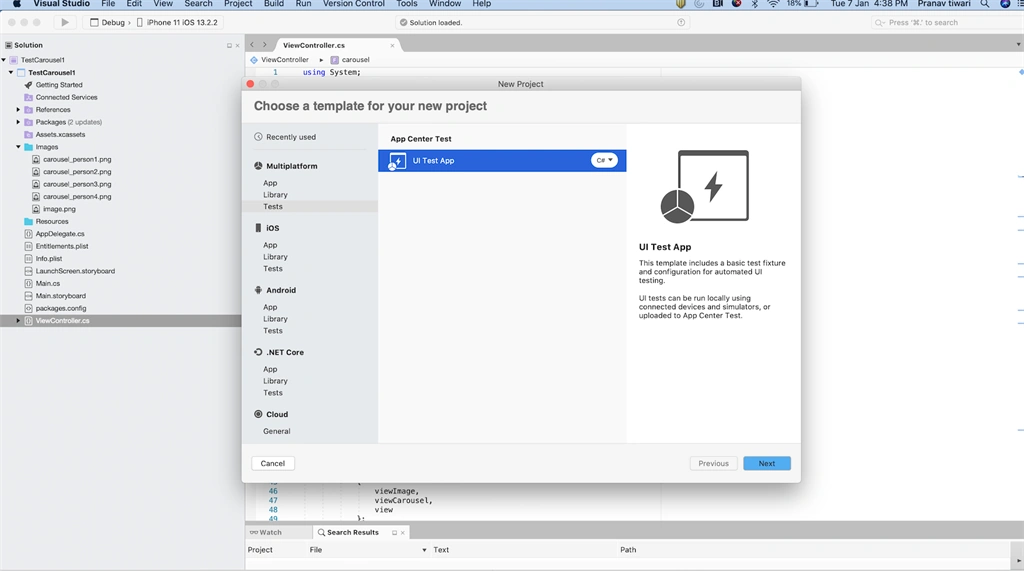
After creating the project the solution will look like this:
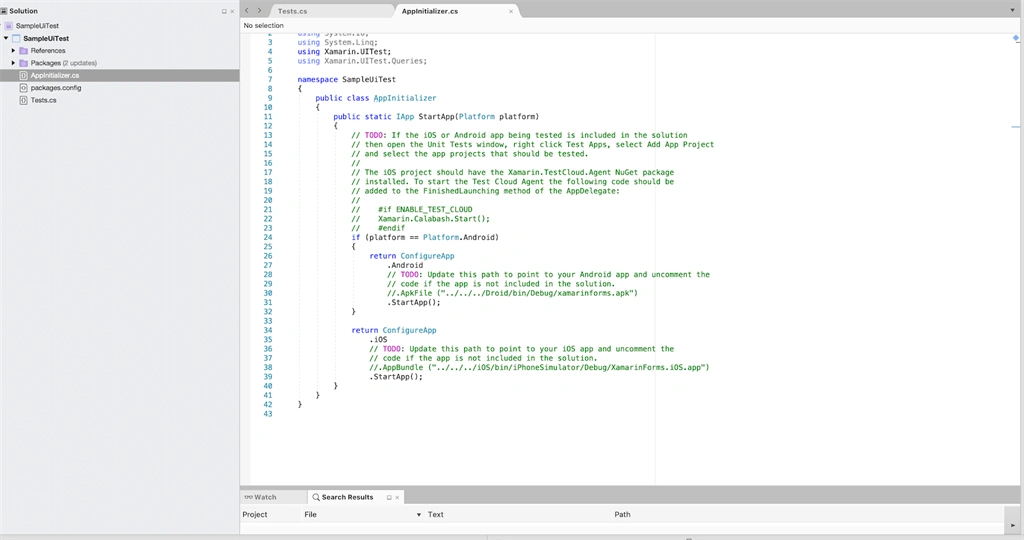
We will start with App Initializer and will try to understand how it works.
- public static IApp StartApp(Platform platform)
- {
- // TODO: If the iOS or Android app being tested is included in the solution
- // then open the Unit Tests window, right click Test Apps, select Add App Project
- // and select the app projects that should be tested.
- //
- // The iOS project should have the Xamarin.TestCloud.Agent NuGet package
- // installed. To start the Test Cloud Agent the following code should be
- // added to the FinishedLaunching method of the AppDelegate:
- //
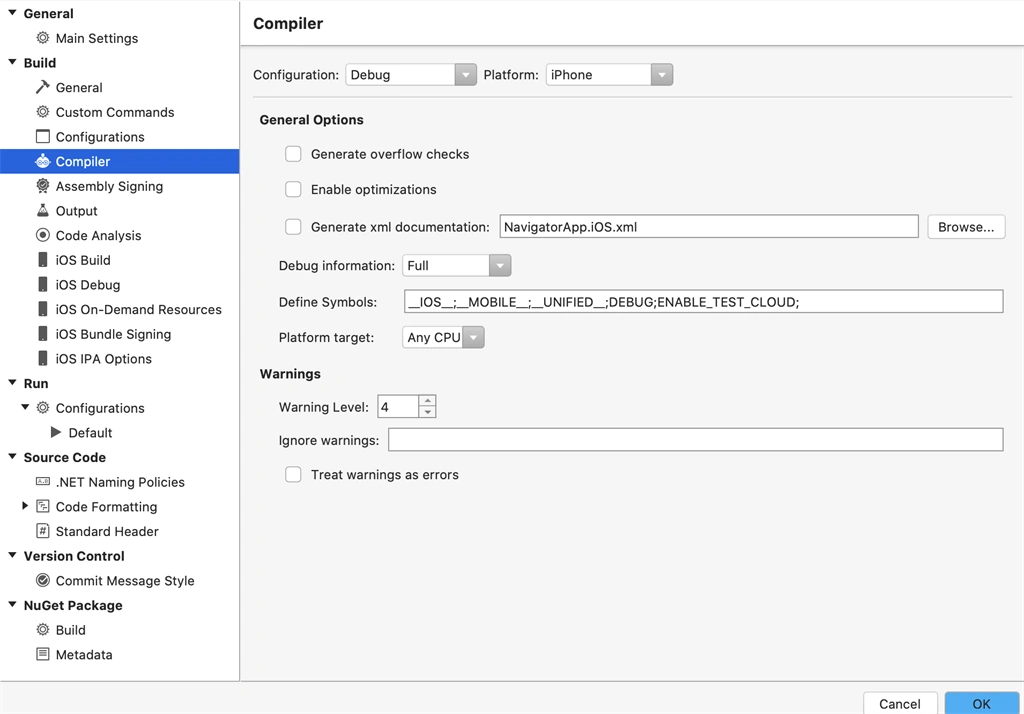
- // #if ENABLE_TEST_CLOUD
- // Xamarin.Calabash.Start();
- // #endif
- if (platform == Platform.Android)
- {
- return ConfigureApp
- .Android
- // TODO: Update this path to point to your Android app and uncomment the
- // code if the app is not included in the solution.
- //.ApkFile ("../../../Droid/bin/Debug/xamarinforms.apk")
- .StartApp();
- }
- return ConfigureApp
- .iOS
- // TODO: Update this path to point to your iOS app and uncomment the
- // code if the app is not included in the solution.
- //.AppBundle ("../../../iOS/bin/iPhoneSimulator/Debug/XamarinForms.iOS.app")
- .StartApp();
- }
Start App will be the first function called when starting the Test Execution.
So here we have to do the Setup for iOS and Android.
Android Setup
We can either use the application that is already there on the Device using the Package name of the Application or we can install the apk from a specified location.
Pinaki MishraPosted Jun 28, 2021, 5:59 AM
Thanks Pranav, nicely articulated. However, I am unable to launch any installed app from physical device using Xamarin.UItest. Let me walk through the steps what I performed: 1. Created Xamarin UI test (cross Platform), 2. connected my physical device to system with debug mode enabled. I can run the adb device command and get my device listed. 3. Tried to open an app which is already installed for example calculator app in device, like ConfigureApp .Android.InstalledApp("com.ABC.xyz") .DeviceSerial("E1BAN000321") .StartApp(); when I run the test, it gives below exception: System.Exception : Failed to execute: C:\Users\pinaki\AppData\Local\Android\Sdk\platform-tools\adb.exe -s E1BAN000321 shell am instrument -w com.ABC.xyz.test/sh.calaba.instrumentationbackend.ClearAppData3 - exit code: 1 java.lang.SecurityException: Permission Denial: starting instrumentation ComponentInfo{com.ABC.xyz.test/sh.calaba.instrumentationbackend.ClearAppData3} from pid=32696, uid=32696 not allowed because package com.ABC.xyz.test does not have a signature matching the target com.ABC.xyz.test at android.os.Parcel.readException(Parcel.java:2013) at android.os.Parcel.readException(Parcel.java:1959) at android.app.IActivityManager$Stub$Proxy.startInstrumentation(IActivityManager.java:5062) at com.android.commands.am.Instrument.run(Instrument.java:419) at com.android.commands.am.Am.runInstrument(Am.java:187) at com.android.commands.am.Am.onRun(Am.java:80) at com.android.internal.os.BaseCommand.run(BaseCommand.java:54) at com.android.commands.am.Am.main(Am.java:50) at com.android.internal.os.RuntimeInit.nativeFinishInit(Native Method) at com.android.internal.os.RuntimeInit.main(RuntimeInit.java:285) INSTRUMENTATION_STATUS: Error=Permission Denial: starting instrumentation ComponentInfo{com.ABC.xyz.test/sh.calaba.instrumentationbackend.ClearAppData3} from pid=32696, uid=32696 not allowed because package com.ABC.xyz.test does not have a signature matching the target com.ABC.xyz INSTRUMENTATION_STATUS: id=ActivityManagerService INSTRUMENTATION_STATUS_CODE: -1
Vinod BadawadagiPosted Jan 28, 2020, 11:20 AM
Thank you Pranav, well explained.